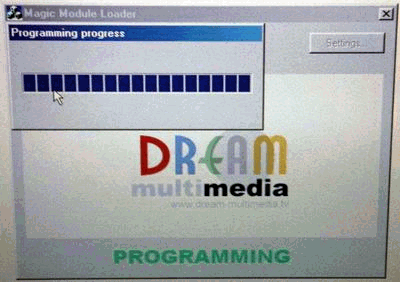
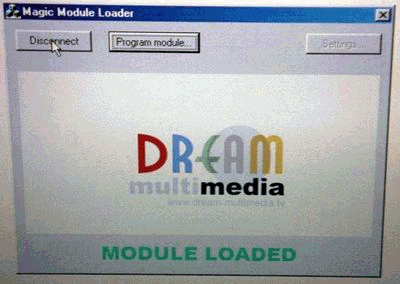
Use  of  Loader & Settings  :

 
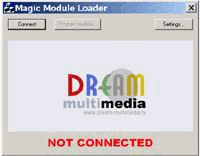
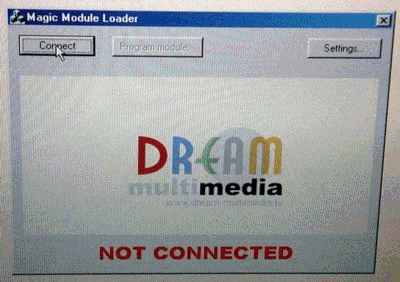
1. The loader program after start
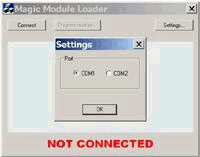
2. Select the Com Port  from "Settings"
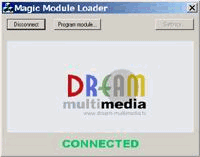
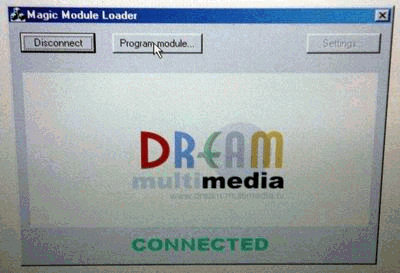
3. Make connection to the module "Connect"
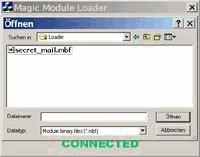
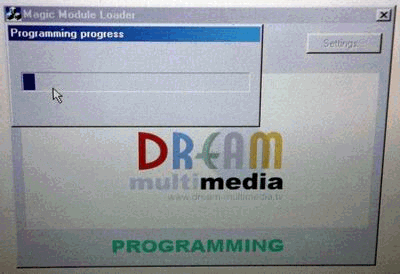
4. Select firmware "a file over" to program
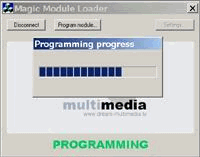
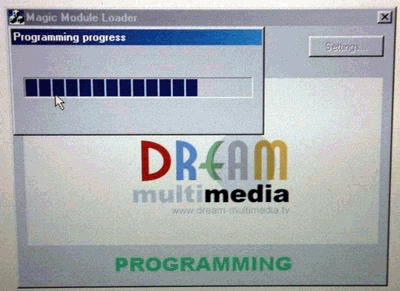
5. The loader program starts now Upload new firmware to the module
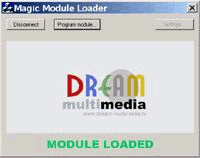
6. Module successfully loaded

 
Loader Tip's  :
Insert the mm without a card into the receiver and select the module via the CI menu.
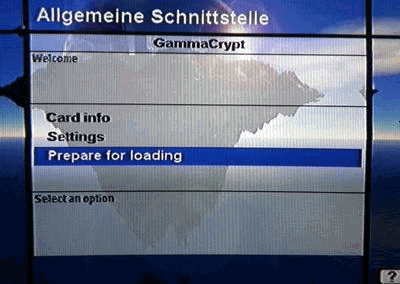
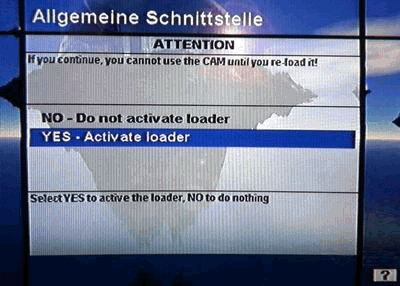
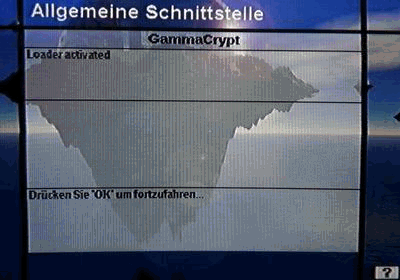
Select "Prepare for loading" and "YES - activate loader"
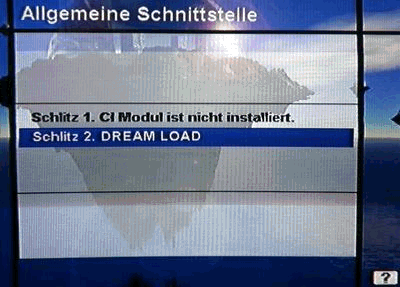
Now the CI menu should show "DREAM LOAD"
In order to bring the module back into the Upload mode, it must get three times a RESET without map.
(receiver on out on out on out on     - or 3 times CAM-reset)

·        HUMAX VACI-5300 - did not get the Programmer operating voltage ( Use lower CI Input )
·
        HUMAX 5600 with 5100 firmware - did not get the Programmer operating voltage ( Use lower CI Input )
·
        TECHNIBOX ( Use upper CI Input )


Programming of the mm in a HUMAX IRCI - 5400

  1. Receiver completely attach and switch on
  2. Switch on an FTA Channel
  3. Mm without card into upper CI input
  4. Menu key on remote control press
  5. On ' installation ';OK goes pressing
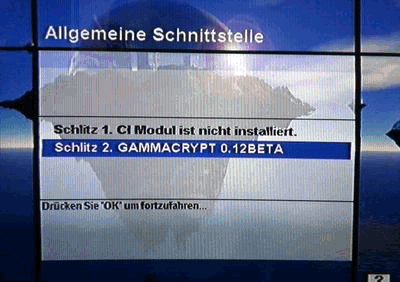
  6. On ' common interface ';OK goes pressing
    (announcement on TV: Slot 1.?????Crypt ?.? Beta)
  7. Select "Prepare for loading" and "YES - activate loader"
    Now the CI menu should show "DREAM LOAD"
  8. Pull Out mm
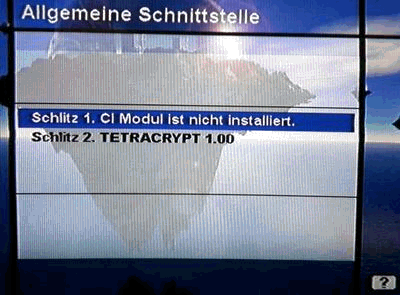
    (announcement: Slot 1. CI module is not installed)
  9. Put in mm
    (announcement: Slot 1. DREAM LOAD)
  10. Pull Out mm
    (announcement: Slot 1. CI module is not installed)
  11. Put in mm
    (announcement: Slot 1. DREAM LOAD)
  12. Pull Out mm
    (announcement: Slot 1. CI module is not installed)
  13. Put in mm
    (announcement: Slot 1. DREAM LOAD)
  14. Remove the mm from the receiver
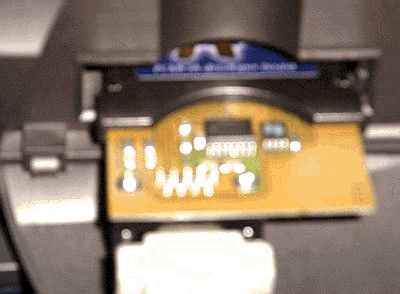
    Connect the serial cable between PC and mm Programmer ( not a null-modem cable )
    Insert mm Programmer into the mm. ( Components and contacts upwards )
  15. Insert the mm into the receiver.
    The green LED on the mm Programmer should light.
    If not, check COM port and cable.
  16. Start mm Loader Software. Select "Settings..." and choose the COM port.
    Click on "Connect". The text "CONNECTED" should appear. If not, try again.
  17. Click on "Program module..." and choose the firmware ( .mdf file )
    RED and GREEN shine
  18. Program module finished
    only for GREEN shines
  19. Pull Out mm
    (announcement: Slot 1. CI module is not installed)
  20. Pull Out mm Programmer from mm
  21. Put in mm
    (announcement: Slot 1. ?????Crypt ?.? Beta)
  22. INSERT card
  23. Have Fun